CalcAnyway · Guide
Usage guide
Building a total of 10,000 out of three cards.
Two people at 5,000 each comes to 10,000. In the board below, changing the number of people changes the total with it.
Here is how to build those three cards yourself. Three steps:
- Put down cards with numbers or formulas on them
- Connect the cards so one feeds another
- Save the finished calculation, or share it
Formulas, inputs, Visualize, keeping a total, and saving and sharing each have a page of their own (list of pages).
1. Put down a card
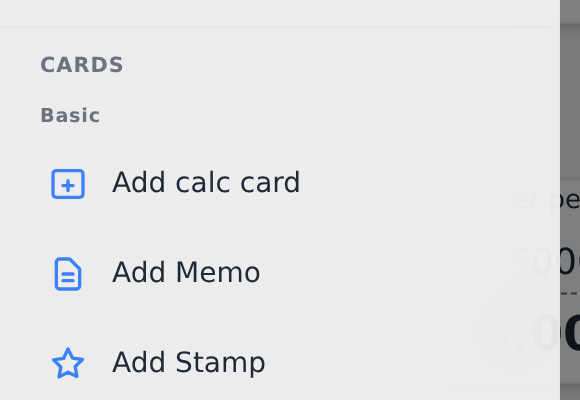
Open the ☰ menu at the top left and press "Add calc card". On a desktop you can also right-click empty space. A card is the box you write a number or a formula in.
The first time you open it, three cards are already there — 12 → ×2 → +10. Changing the 12 on the first one is enough to watch a connected calculation follow.
Select the card and type 5000. Naming it "Per person" makes it obvious later
what the number was. Make a second card the same way, call it "People", and type
2.
Formulas go in as they are: 1200 * 4 and the rest of the four operations, plus
parentheses, exponents and percentages. The symbols and functions are listed in
Formulas and functions.
For a bare number there is also the input card, which suits values you intend to change (Give the cards distinct jobs). These three steps are about connecting cards so one feeds another, so they use the calculation card.
2. Connect the cards
Now make a "Total" card. The numbers in "People" and "Per person" are going to do its arithmetic.
Drag the ○ on the edge of a card onto "Total" and that card's number becomes usable in the
formula. Make it People × Per person and the total reads 10,000.
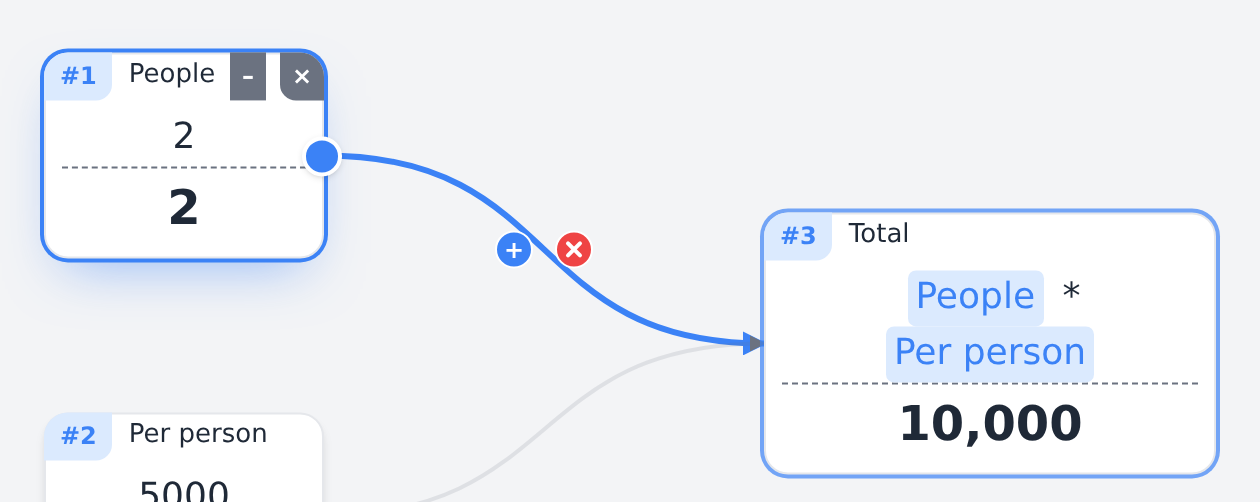
Now change People from 2 to 3. The total becomes 15,000. That is what the board at the top of this page is doing.
- The connection stays visible as a line, so "where did this number come from" is answerable.
- Circular references (A→B→A) are detected and reported instead of hanging.
3. Save and share
- Saving — a board you build is kept in the browser, and you can hold several of them under names.
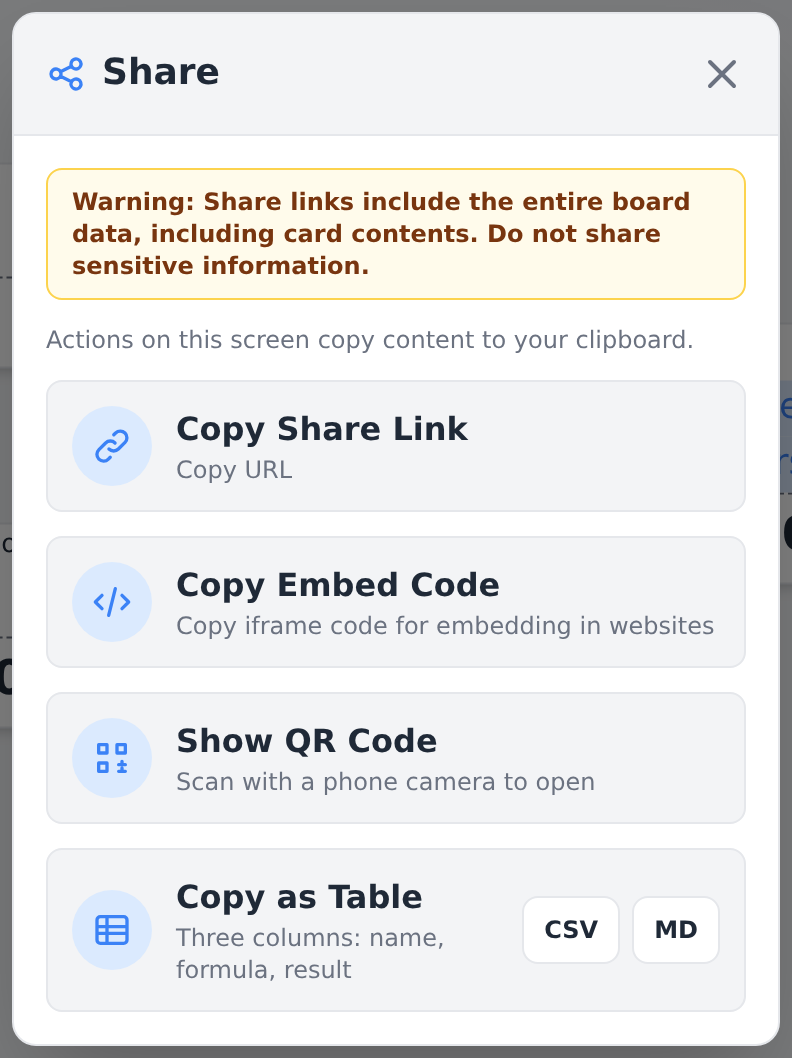
- Share link — "Create Share Link" in the ☰ menu turns the current board into a URL you can send. Whoever receives it opens the same board with no account.
- Export — save the board as a PNG image or a JSON file. JSON can be imported back, which doubles as your backup when moving devices.
Where boards are stored, and how boards embedded in articles behave, are covered in Save, share and embed.
Moving around the screen
Cards can be dragged anywhere. The working area they sit on is called the canvas; pinch (or scroll) to zoom it, drag the background to pan. There is no edge to it.
Give the cards distinct jobs
A card that holds a number, a card that calculates, a card that shows the answer. Splitting them by job is what makes a board readable when you come back to it.
- Input — for a number you intend to change yourself. Choose how it is operated: a number field, ± buttons or a slider. Press "Record" and the value at that moment is kept, to be laid out later as a "Recorded trend" (Input types).
- Calculation — holds a number or a formula and works with values from other cards. The card the three steps above used.
- Result — the total of everything connected to it, shown large. For putting a board's conclusion in one place. It can also keep the total fixed and spread a change over the other cards (Keep a total and split it).
Pick the numbers, then pick the view
Select the cards you want to show and press "Visualize". Candidate charts and summaries, drawn with the numbers you selected, appear on the spot. Pressing one creates that card, already connected to the cards you selected.
Which candidates appear depends on how many cards you picked and whether the values are positive or negative. One card offers "Big number" and "Vs. target"; two offer "See the difference", "Progress", "Compare bars" and others; three or more also offer "Share (pie)". Mix positive and negative values and "Rise & fall" comes first. Candidates that do not fit are not offered. The new card lands just right of the cards you selected, and one undo removes it together with its connections. The full list of candidates, and the cards that draw curves and sensitivity, are on the Visualize page.

Work backwards from the answer
One candidate is not a chart at all: "Solve for target". It answers "what does the original number have to be, for the answer to come out at this?" — fix the monthly payment first, get the loan amount.
The conditions for it to appear are deliberately strict. Exactly two cards selected, one of them a card you can type into (an input card, a slider, or a calculation card holding just a number), and the other one calculated from it. If there is no clear answer to "which one should move", nothing is offered.
Press it and you get a field for the target. It does not solve the formula — it puts candidate numbers in and recalculates, over and over, which is why it works on boards where the reverse formula cannot be written at all. Only the original card's value changes, so one undo puts it back, and if no value reaches the target it finishes without changing anything.
Other ways to show it
Besides picking from "Visualize", these cards can be placed directly.
- Charts — show results as bar or pie charts and the rest. Change the source numbers and the chart redraws.
- Sliders — drag a value and watch what it does. "What if one more person comes", with your finger still on it.
- Function plots — draw an f(x) formula as a curve. Feed its coefficients from other cards and the curve reshapes.
Drag a card's ○ onto empty canvas and release, and a chooser offers what you can create there.
When you would rather not build from scratch
There are two things to open. Templates are shapes of calculation with no subject attached — the "how could this be built" half. Worked examples — fractions, area, per-unit quantities, circuits — are the "what is it for" half, filled in. Either way the board arrives fully assembled, which is the part that takes the time, and you replace the numbers with your own.
Once a shape settles into something you use often, save that board under a name or export it as JSON. Load it next time and you start from there. Your own boards are your templates.
Pages by operation
Each kind of card is described in the card reference.
- Formulas and functions — typing formulas, referencing other cards, operators and what % means, every function with its exact behaviour, error messages and the digits shown.
- Input types — the three ways an input card can be shown (number field, ± buttons, slider), how to switch, and how range, step, units, decimal places and recording work.
- Visualize — selecting cards and pressing "Visualize" to make a chart, which candidates appear, the "What if I move it?" curve and the "Sensitivity" bars.
- Keep a total and split it — fixing a total on a result card, how a change is spread (by ratio, equally, top down), limits, and splitting in whole numbers or by D'Hondt.
- Save, share and embed — where boards are saved (the browser), saving under a name and to a file, share links and images, and how to keep numbers changed on a board embedded in an article.
FAQ
Where is my data stored?
The numbers and boards you type are kept in your browser and are not stored on our servers. See the privacy policy for details.
Can I lose my data?
Clearing the site's data in your browser can remove saved boards. Export important ones as JSON. For mistakes there are also automatic backups (menu → "Restore an automatic backup") that roll the board back to an earlier state.
Does it work offline?
Once you have opened it, yes — it starts and calculates with no connection. Add it to your home screen to launch it like an app.
Reloading offline will not wipe it. The app itself was taken onto your device the first time you opened it, and that copy is what runs when there is no connection. The board you are working on is saved in the browser too, so you pick up where the reload left off.
Can I make my own templates?
There is no separate template feature — you save a board under a name, or export it as JSON, and load it when you want to start from that shape again.
How does a share link carry the board?
The board goes in the part of the URL after the # sign, and browsers are required to cut that part off before making the request — only what comes before the # reaches a server. So the contents reach neither us nor anything in between. Anyone holding the link can open it, though, so choose who you give it to.
Is it free?
Yes, and there is no account to create. The pages and the app carry ads.